Portfolio Actions user guide
Overview
Portfolio Actions helps you manage and rebalance existing client portfolios. Use this feature to process portfolio changes, manage deposits and withdrawals, and generate transaction lists for execution.
Who should use this: Advisors managing existing client portfolios with account data synchronized to the platform.
Prefer video? Watch our video tutorials at the end of this guide.
What you can do
- Assign client accounts and holdings to goals for rebalancing
- Map holdings to asset classes for accurate portfolio display
- Assign external holdings to asset classes to reflect true allocation
- Create placeholder accounts
- Add withdrawals and transfers
- Calculate transaction lists for execution
Before you start
Requirements
- Account data must be integrated and synchronized to the platform
- Client holdings information must be populated
Key concepts
Goal assignment determines rebalancing When you assign a position (fund or cash) to a goal, that holding becomes subject to rebalancing according to the goal's target allocation.
Target portfolio The portfolio created on the advisory page defines the target allocation for each goal.
Account value calculation The system calculates the target account value using: assigned account value + deposits - withdrawals.
Preferred account types Each instrument can be mapped to preferred account types. If the client lacks suitable accounts, create placeholder accounts.
Placeholder accounts Accounts created in the platform are placeholders for workflow purposes only. They help structure the advisory process and can trigger actual account creation in your firm's systems.
Withdrawal restrictions Withdrawals are only allowed if the assigned account has available funds.
Value column in custom portfolio mode The value column determines the target portfolio you are rebalancing toward.
Where to find the functionality
Portfolio actions is located in the financial situation page, as demonstrated in the video below
Understanding actions
A key concept in portfolio actions is to assign actions to the existing portfolio of the investor. The actions you select at account or position level affect how the system calculates transactions.
Assign to an existing goal
Assigns the account or position value to an existing goal. The holding becomes subject to rebalancing according to that goal's target portfolio allocation.
When to use: When you want the holding to be rebalanced as part of the goal's investment strategy.
Assign to new goal
Creates a new goal and assigns the account or position to it. Like "Assign to an existing goal," this makes the value subject to rebalancing.
When to use: When the client has holdings that should be managed separately from existing goals, such as a new savings objective or investment strategy.
Keep in total portfolio
Excludes the position from rebalancing but includes it in the total portfolio view for reporting purposes.
When to use: When you want visibility of the holding in the overall portfolio but don't want to change it. Examples: employer stock, restricted holdings, or investments the client wants to maintain as-is.
Requires: Total Portfolio feature enabled.
Keep and hide
Excludes the position from both rebalancing and the total portfolio display.
When to use: When holdings should not be part of the advisory scope. Examples: accounts managed by another advisor, legacy positions being wound down, or holdings outside your management (e.g execution only).
Customize
Allows you to split an account or position across multiple goals or partially include it in rebalancing.
When to use: When you need flexibility, such as:
- Distributing a large position across multiple goals
- Only rebalancing a portion of an account while keeping the rest stable
- Managing complex account structures with different objectives
Working with model portfolios vs. custom portfolios
Model portfolio mode
Model portfolio mode simplifies the rebalancing process and is generally easier to use than custom portfolios.
Key features:
- Automatic account assignment: Positions are automatically assigned to the preferred account type
- Goal-level deposits and withdrawals: Set deposits or withdrawals at the goal level and the system calculates all transactions automatically
- Streamlined workflow: Less manual decision-making required
When to use: For straightforward rebalancing scenarios where the client's account structure aligns with standard practices and the portfolio follows your model portfolios.
Custom portfolio mode
Custom portfolio mode gives you more control but requires additional input.
What you'll need to specify:
- Position-level decisions: For each position assigned through account-to-goal mapping, decide whether to decrease, increase, or maintain the position value. Available methods:
- Buy: Add a specific amount to the position
- Sell amount: Sell a specific currency amount
- Sell %: Sell a percentage of the position
- Target value: Specify the desired end value; the system calculates the required transaction
- Switch order: Replace one holding with one or more.
- Note: Sell % and switch orders display estimated values. Final transaction values are determined at execution in external systems.
- Account assignment: For all newly assigned positions, select which account they should be invested in
- Manual inputs: The aggregated deposit, withdrawal, and new account value are based on the inputs you provide in the custom portfolio interface
When to use: For complex scenarios requiring specific position-level control, such as:
- Tax-loss harvesting strategies
- Gradual position liquidation
- Client-specific holding preferences
- Non-standard account structures
Tips and best practices
- Simplify account structures: A simpler account structure makes the advisory flow easier
- Work at account level: Working on the account level rather than individual positions is more efficient and provides better oversight
- Start with model portfolios: Model portfolio mode is simpler than custom portfolio mode
- Remember the target: The goal portfolio defines the target allocation for rebalancing
- Handle out-of-scope assets carefully: If you're syncing accounts or positions outside the advisor's universe, ensure these have account types not part of "preferred accounts" to prevent advisory errors
Placeholder account
Brief intro
The solution supports the possibility to create placeholder accounts. Placeholder accounts are for workflow purposes only. They allow the system to calculate required transactions for accounts that don't yet exist.
This functionality can be turned off, but doing so requires that all clients have accounts posted to the system before using the platform. This means every investor you serve through the platform must have an account created in your external system in order to complete a session.
How to create a placeholder account
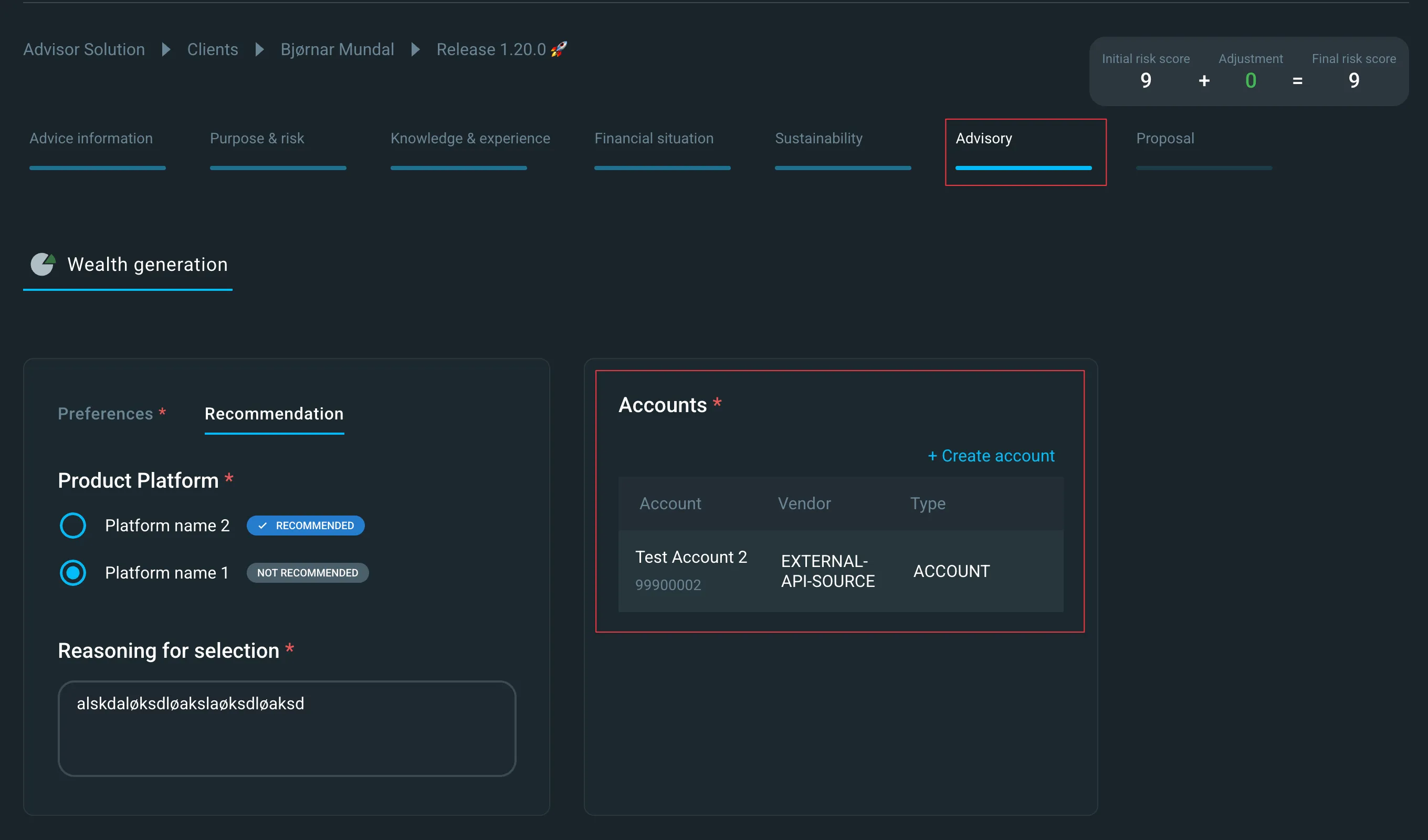
Step 1: Navigate to the advisory page and locate the account section.
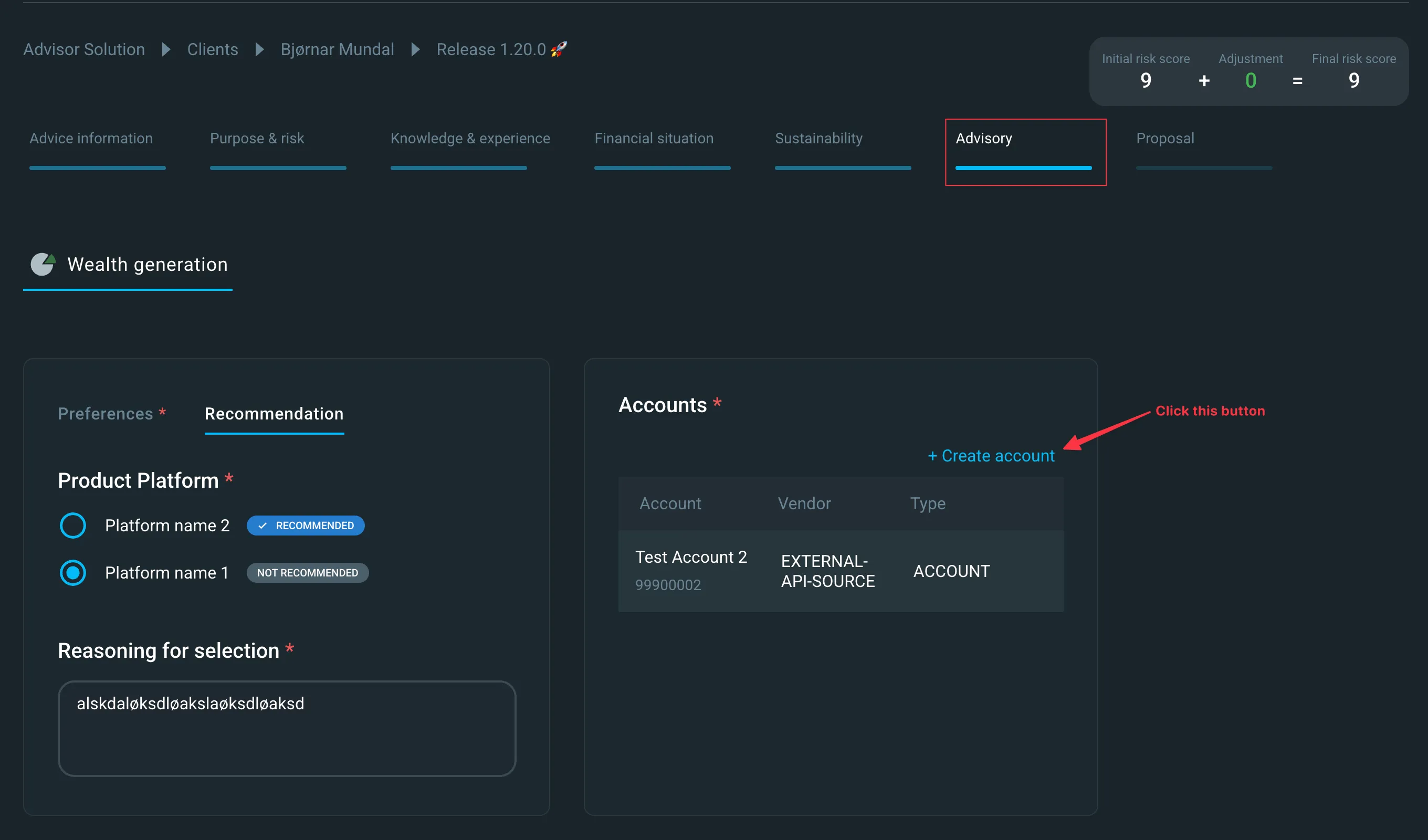
Step 2: Click the button for account creation.
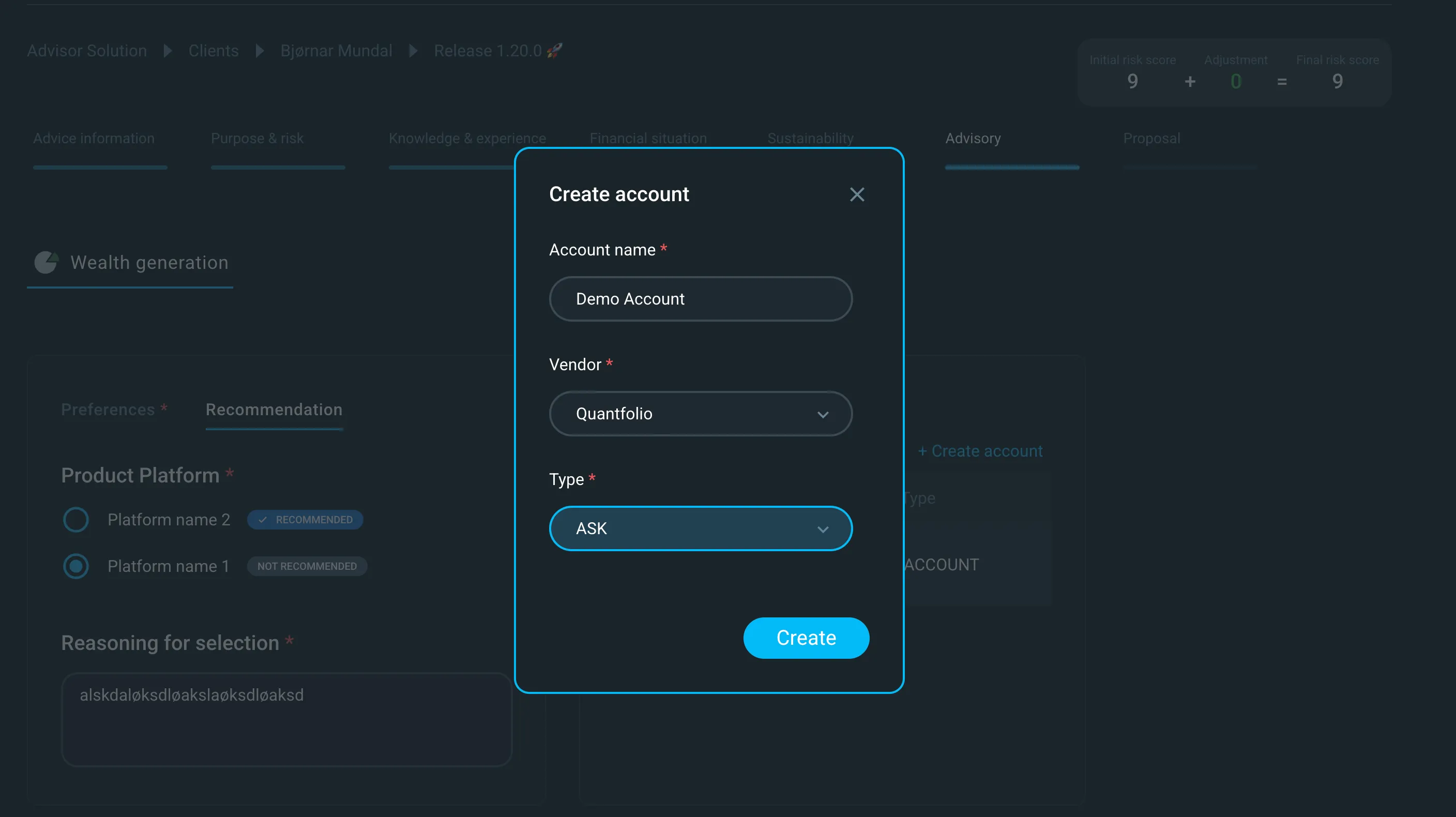
Step 3: Fill in the fields in the modal.
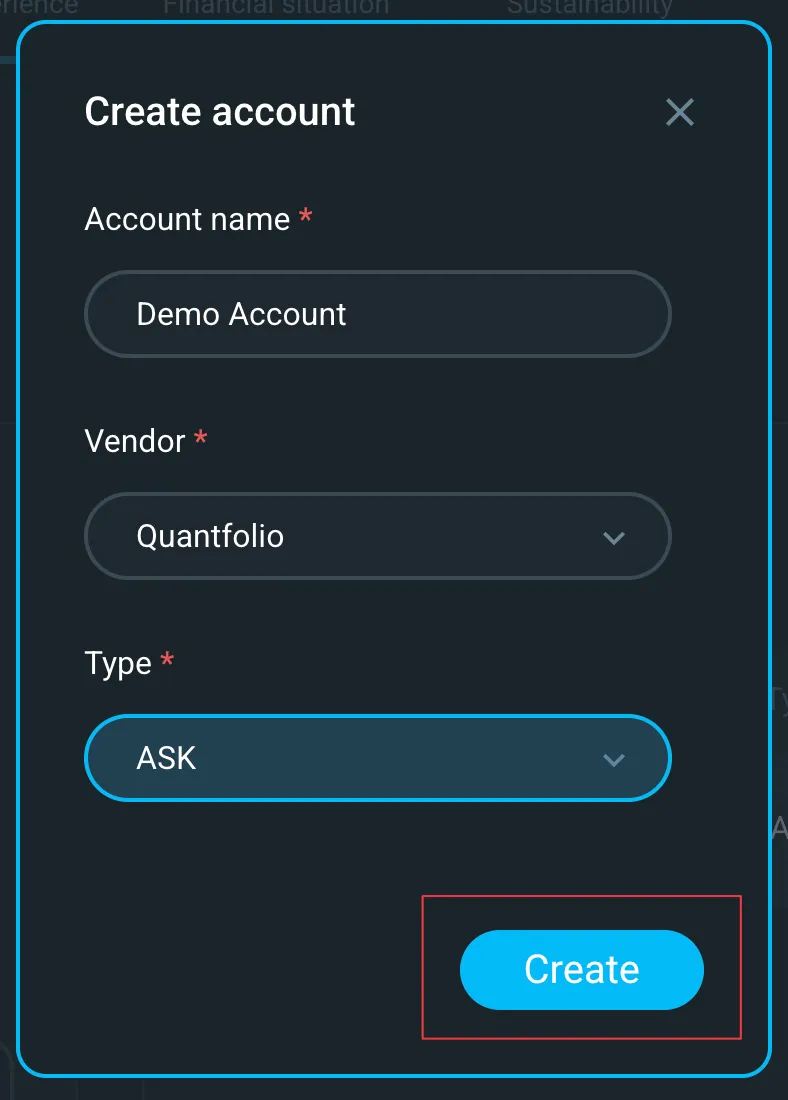
Step 4: Click "Create" to create the account.
How to add a deposit
Deposits flow to accounts first, then get distributed to funds through the actions you set. You can track all cash movements in the cash transactions section.
Two ways to add deposits
Choose the method that fits your workflow. You can only decide to use one.
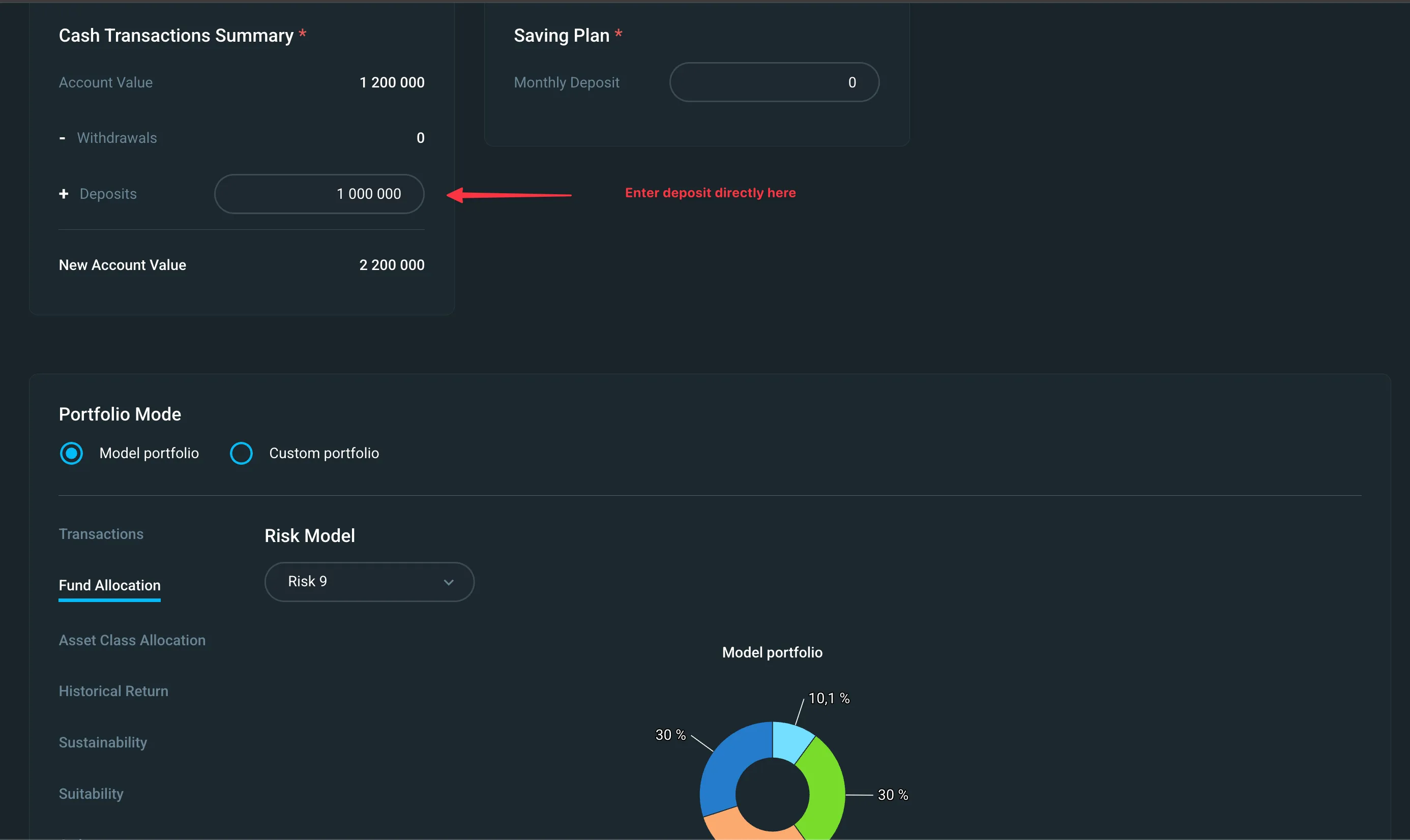
Option 1: Enter manually
Enter the deposit amount directly in the cash transactions section.
When to use: For one-time deposits or when the amount isn't captured elsewhere in the advisory process.
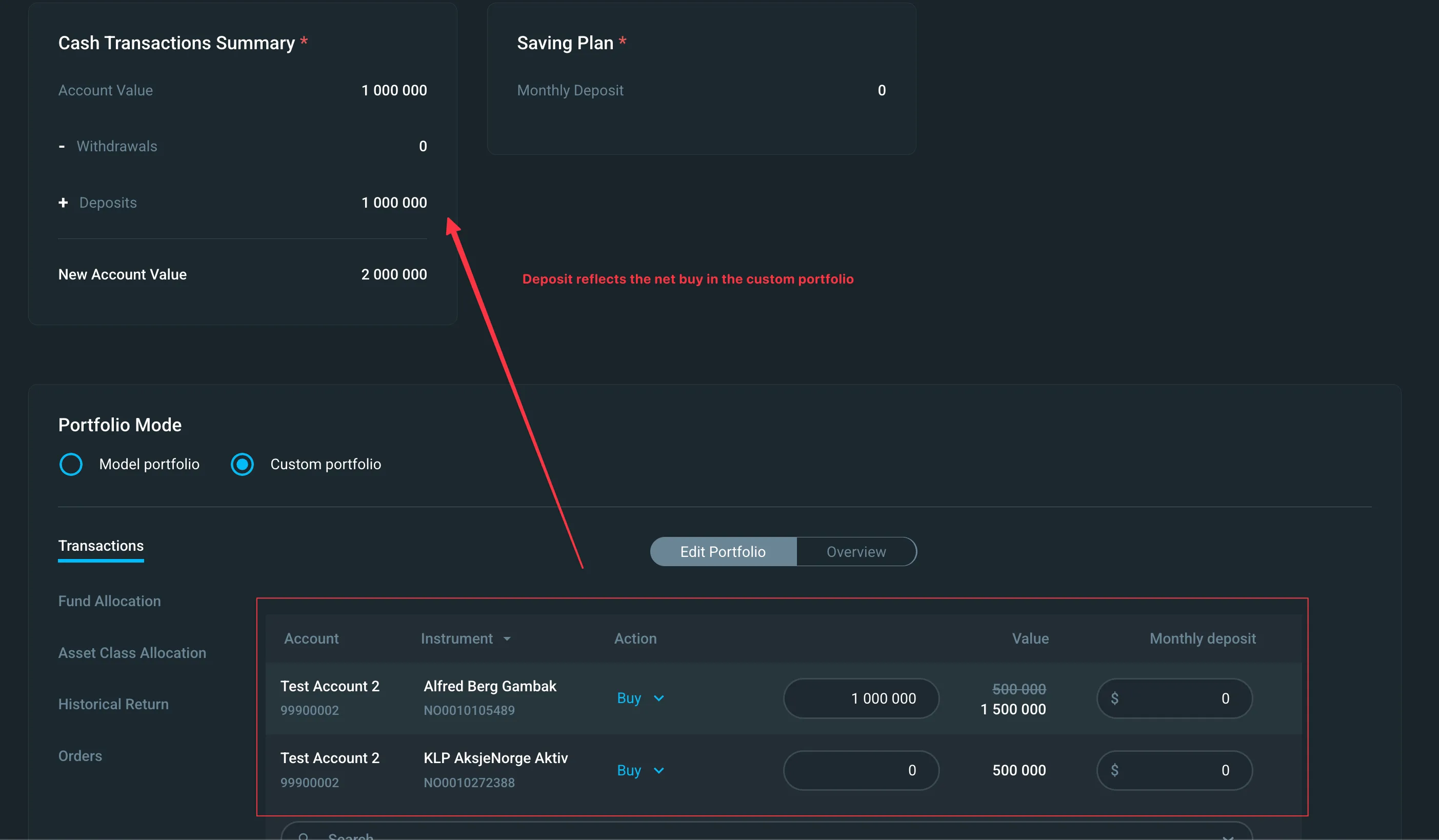
In custom portfolio, the system calculates the required deposit based on the transactions you've constructed. When your buy transactions exceed what can be funded by existing cash and sell transactions, a deposit is generated to cover the difference.
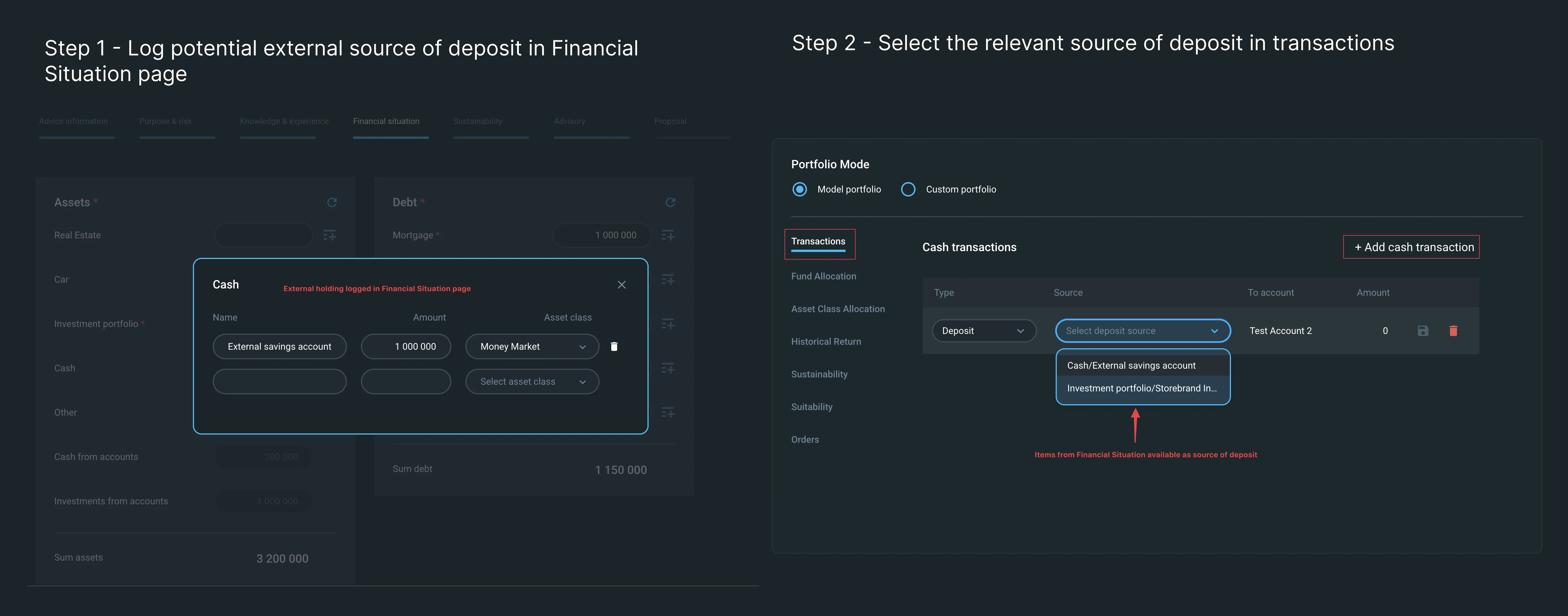
Option 2: Connect from Financial Situation
Link deposit fields from the Financial Situation page to automatically populate the deposit amount.
When to use: When you want the deposit to reflect data already captured during the advisory process. This ensures accurate total portfolio calculations.
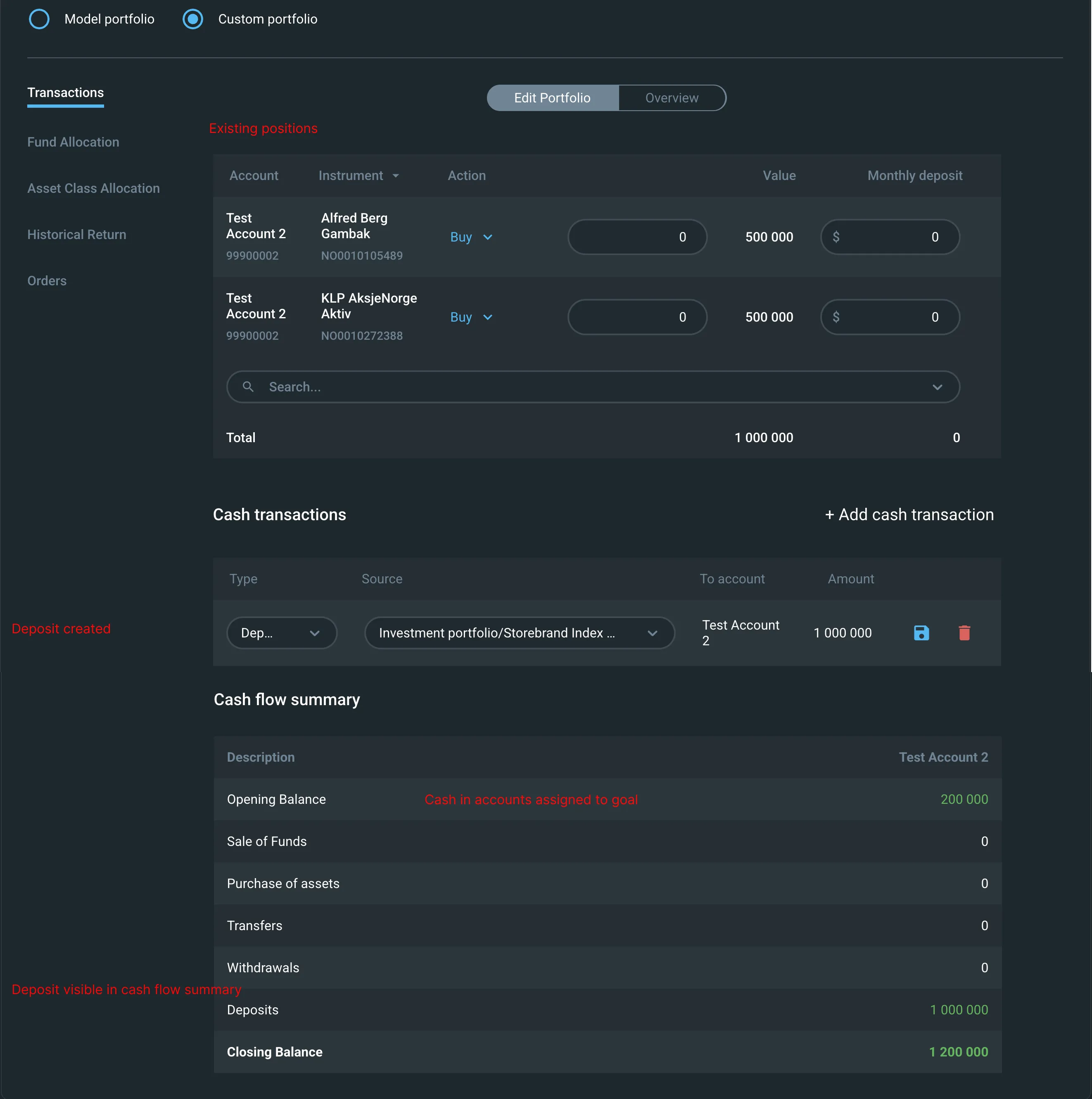
How deposits are processed
- The deposit amount is added to the selected account
- You set actions to determine how the cash is distributed to funds when working with custom portfolio. The system calculates the required transactions when working with model portfolio.
- All movements appear in the cash transactions section
How to add a withdrawal
Note that you need to have an account assigned to a goal in order to make a withdrawal.
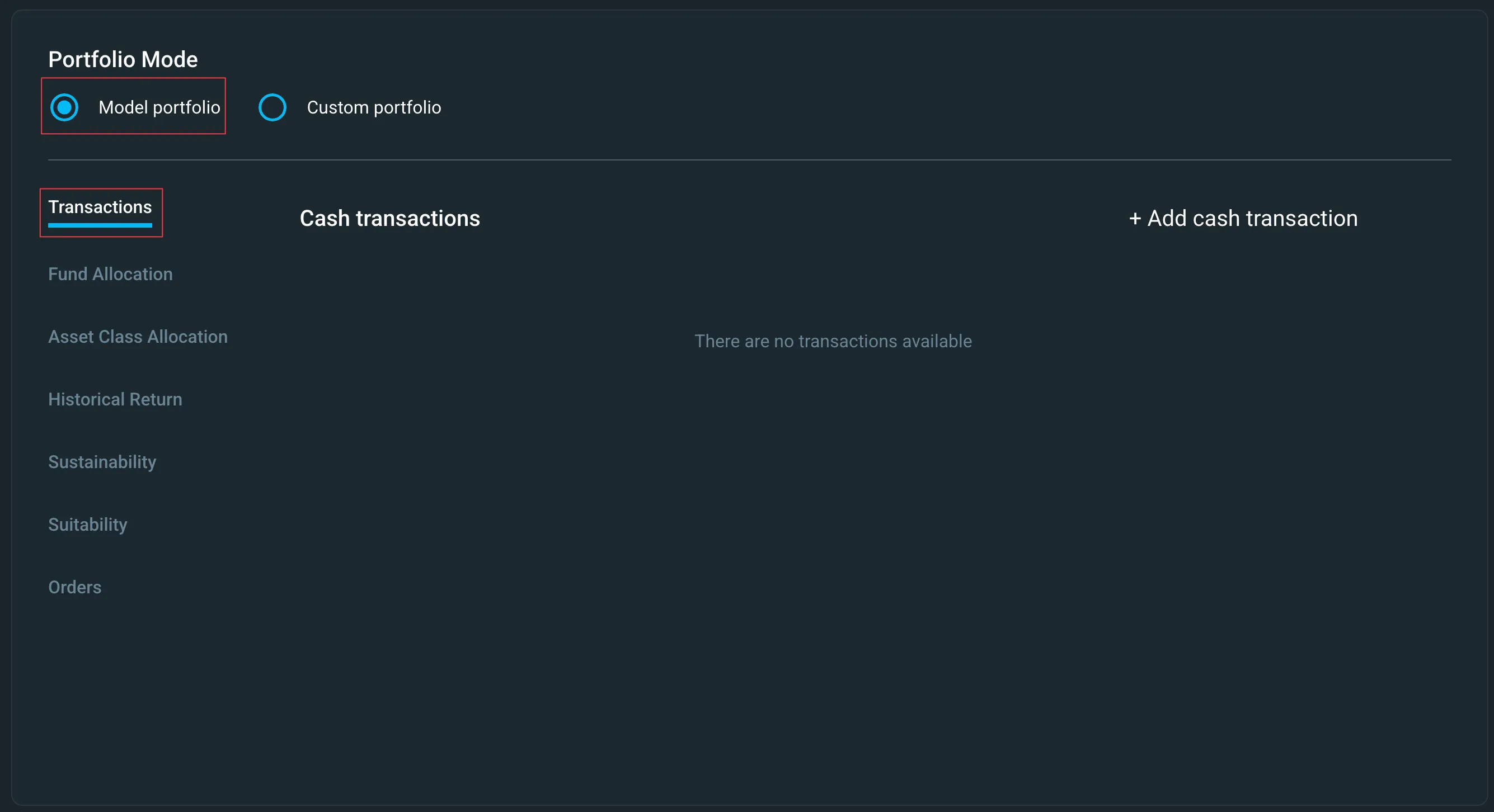
Model portfolio
Step 1: Navigate to the transactions tab.
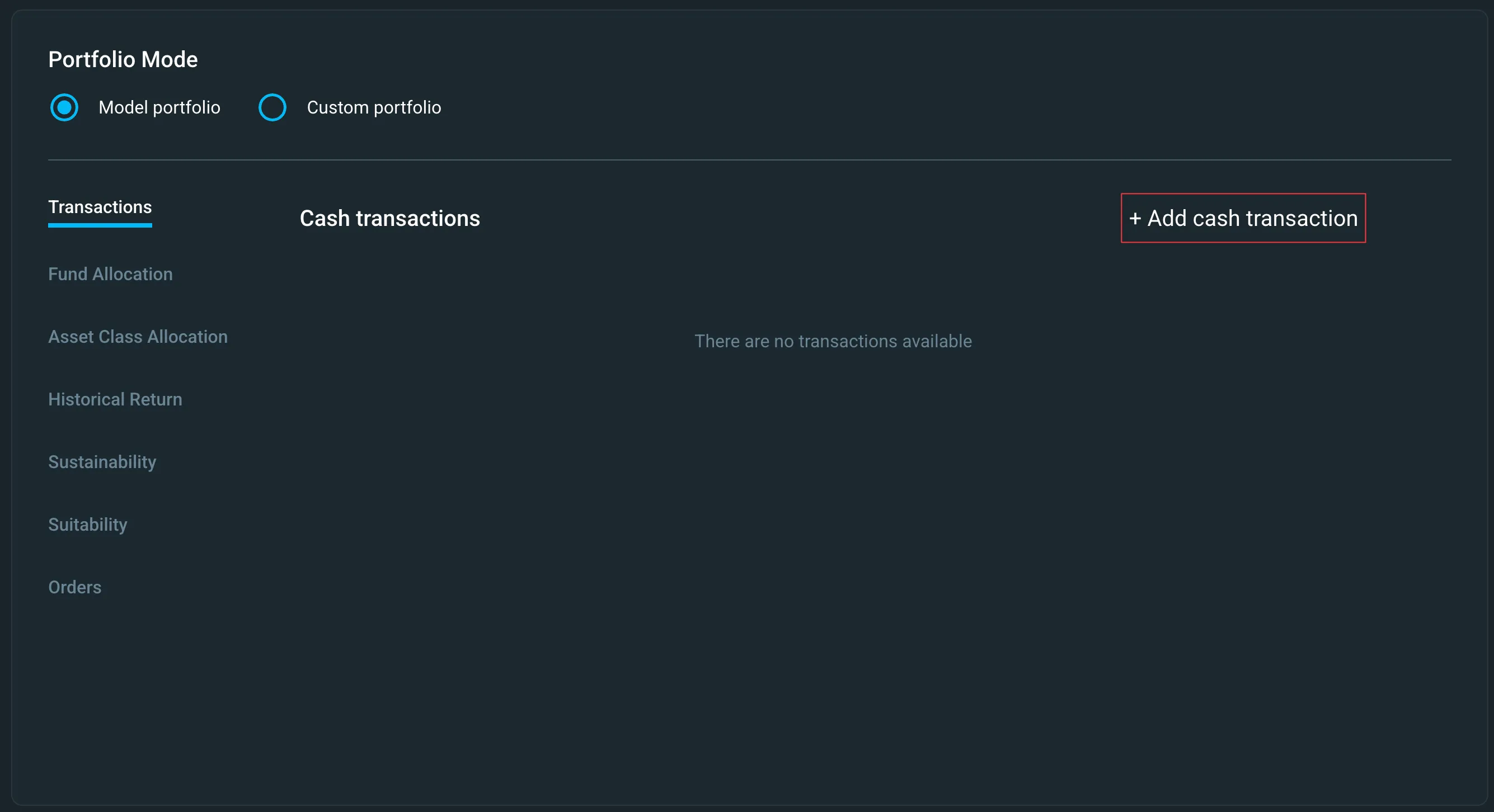
Step 2: Click "+ Add cash transaction".
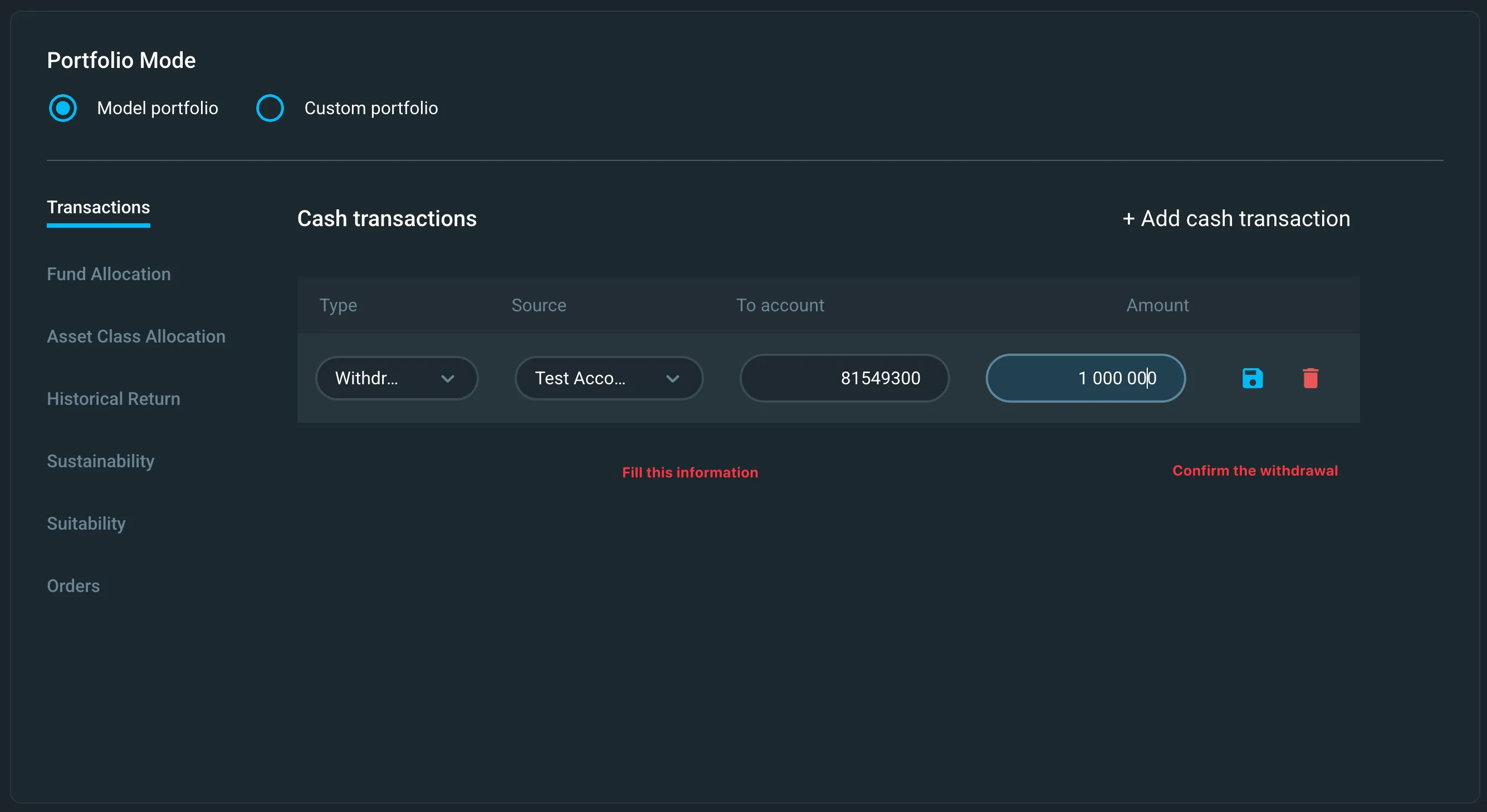
Step 3: Fill in the withdrawal information.
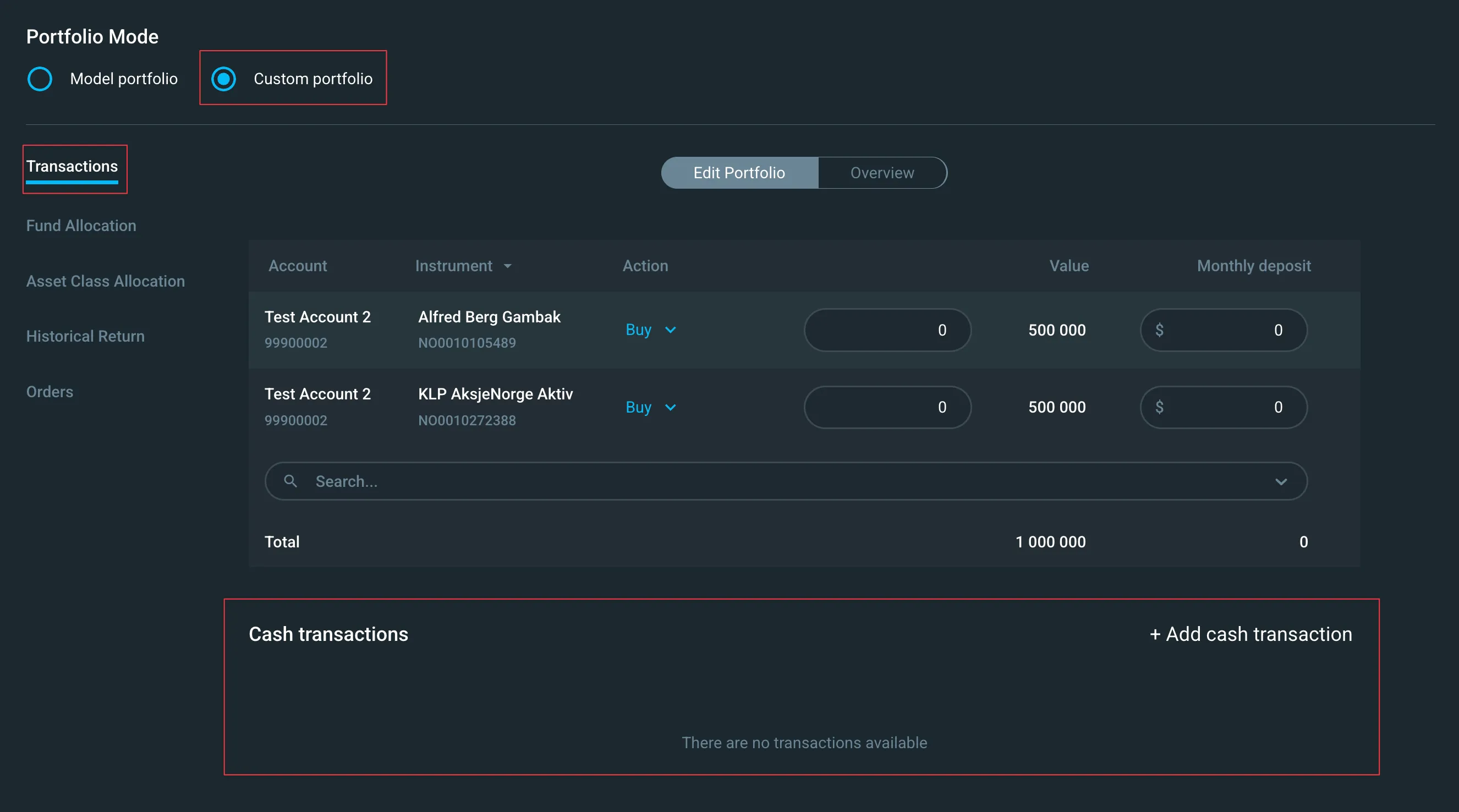
Custom portfolio
Step 1: Navigate to the transactions tab and identify the cash transactions section.
Step 2: Click "+ Add cash transaction".
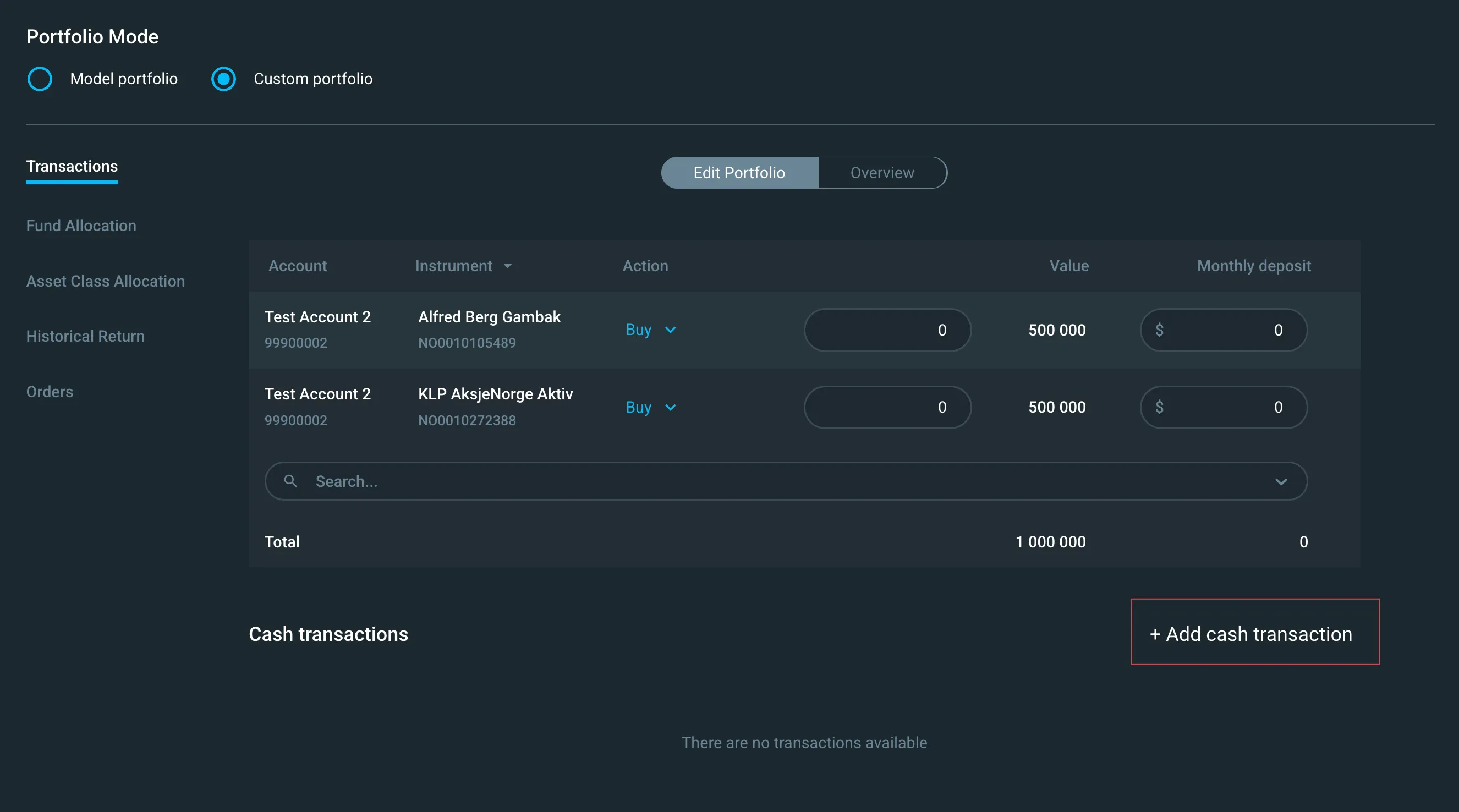
Step 3: Fill in the withdrawal information.
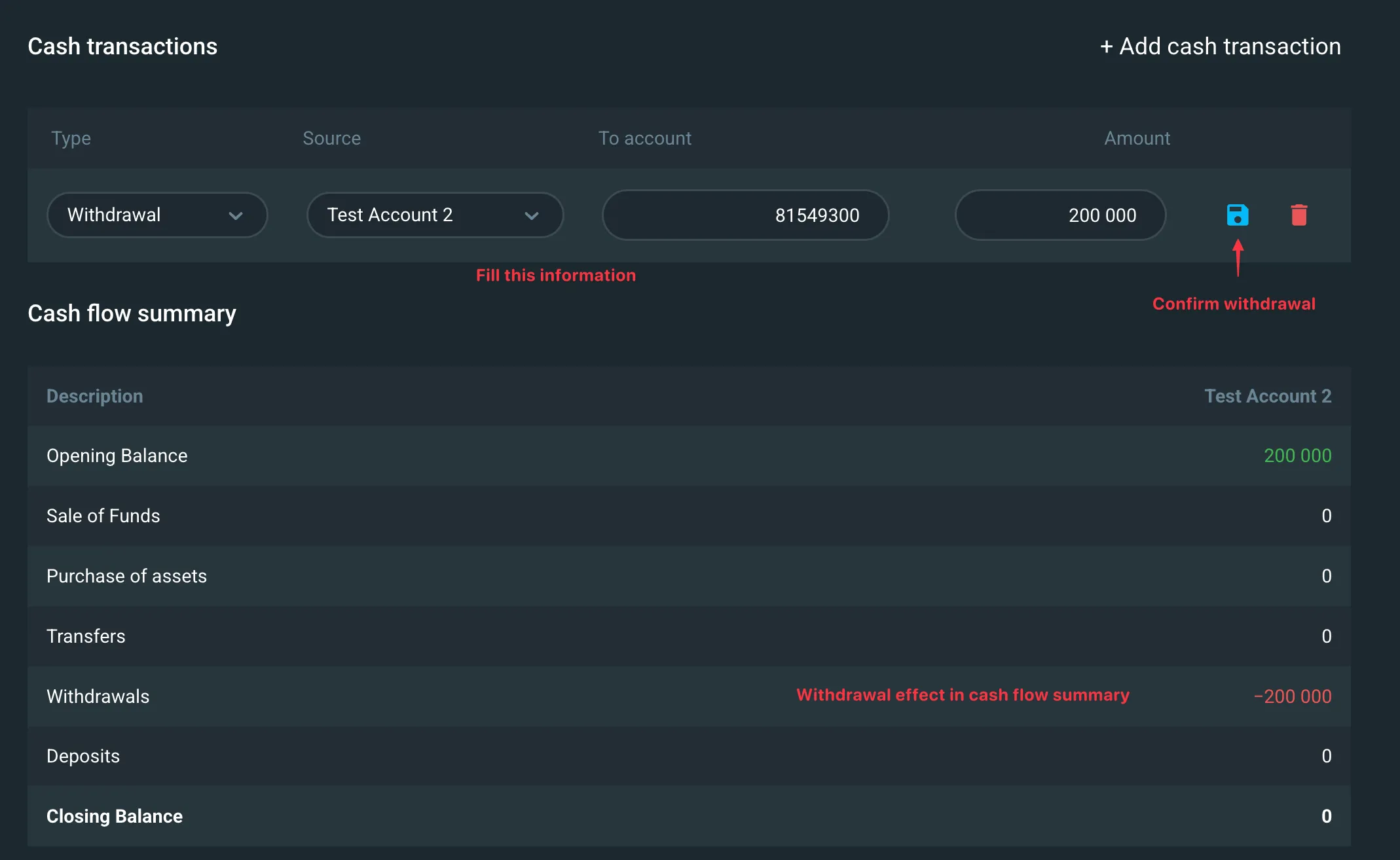
Common questions
Q: What's the difference between a placeholder account and a real account?
A: Placeholder accounts are for workflow purposes only. They allow the system to calculate required transactions for accounts that don't yet exist. Real accounts are received through integration and created outside of Deep Alpha.
Q: Can I rebalance holdings that aren't assigned to a goal?
A: No. Only holdings assigned to a goal are included in rebalancing calculations. Holdings marked as "Keep in total portfolio" or "Keep and hide" are not rebalanced.
Q: What happens if I try to withdraw more than the account balance?
A: The system prevents this and shows an error. Withdrawals are only allowed up to the available funds in the assigned account.
Video tutorials
Where to find the functionality
Explanation of the different actions
Creating an account
Model portfolio with Portfolio Actions
Custom portfolio with Portfolio Actions
Video showing custom portfolio with portfolio actions is under construction 🎥