Custom portfolio user guide
Custom Portfolio allows you to create tailored investment portfolios for clients whose needs don't match your standard model portfolios.
Use Custom Portfolio when:
- Model portfolios need to be adapted to match the client's sustainability preferences
- The model portfolio contains products not suitable for the client
- The client has specific preferences that require adjustments
The feature works differently depending on whether you're using Portfolio Actions (with account data) or building portfolios without existing holdings.
Prefer video? Watch how Custom Portfolio works in different scenarios:
Custom Portfolio without Portfolio Actions
This video is under construction and coming soon
Custom Portfolio with Portfolio Actions
Before you start
Important to know
- Amount-based allocation: All allocations use currency amounts rather than percentages
- Customizable interface: You can configure which information and analysis tools appear in your workspace (see Configuration options below)
- Advisor notes: Enable this feature to add internal notes about portfolio decisions
- Matching allocations: The system currently require you to have the same %-allocation in both monthly and initial deposit.
Configuration options
You can customize Custom Portfolio to match your workflow.
Available configurations
Advanced search fields Control which fund information appears when searching for investments. Choose from data points like suitability status, sustainability status, cost or product attributes. Display only the information relevant to your selection process.
Portfolio table columns Select which data fields display in the main portfolio workspace where you build allocations. Available columns include fund names, ISIN codes, amounts, and sustainability and suitability information.
Analysis tools Enable or disable specific analysis features in your portfolio view. Options include asset class distribution charts and historical return statistics. Show only the analysis tools you regularly use.
Example: Advisors focused on diversification might enable asset class charts while hiding tools they don't need.
Advisor notes Turn on internal note-taking to document portfolio decisions and rationale. Notes are visible to advisors and can be included in client-facing proposals (PDF Templates). Useful for compliance documentation, handoff between team members, or recording client-specific considerations.
Example: Document why you deviated from a model portfolio or note specific client preferences that influenced fund selection.
How to create a custom portfolio
Without Portfolio Actions
Use this workflow when building portfolios without existing account data. You construct the portfolio from scratch without the client's current holdings as a starting point.
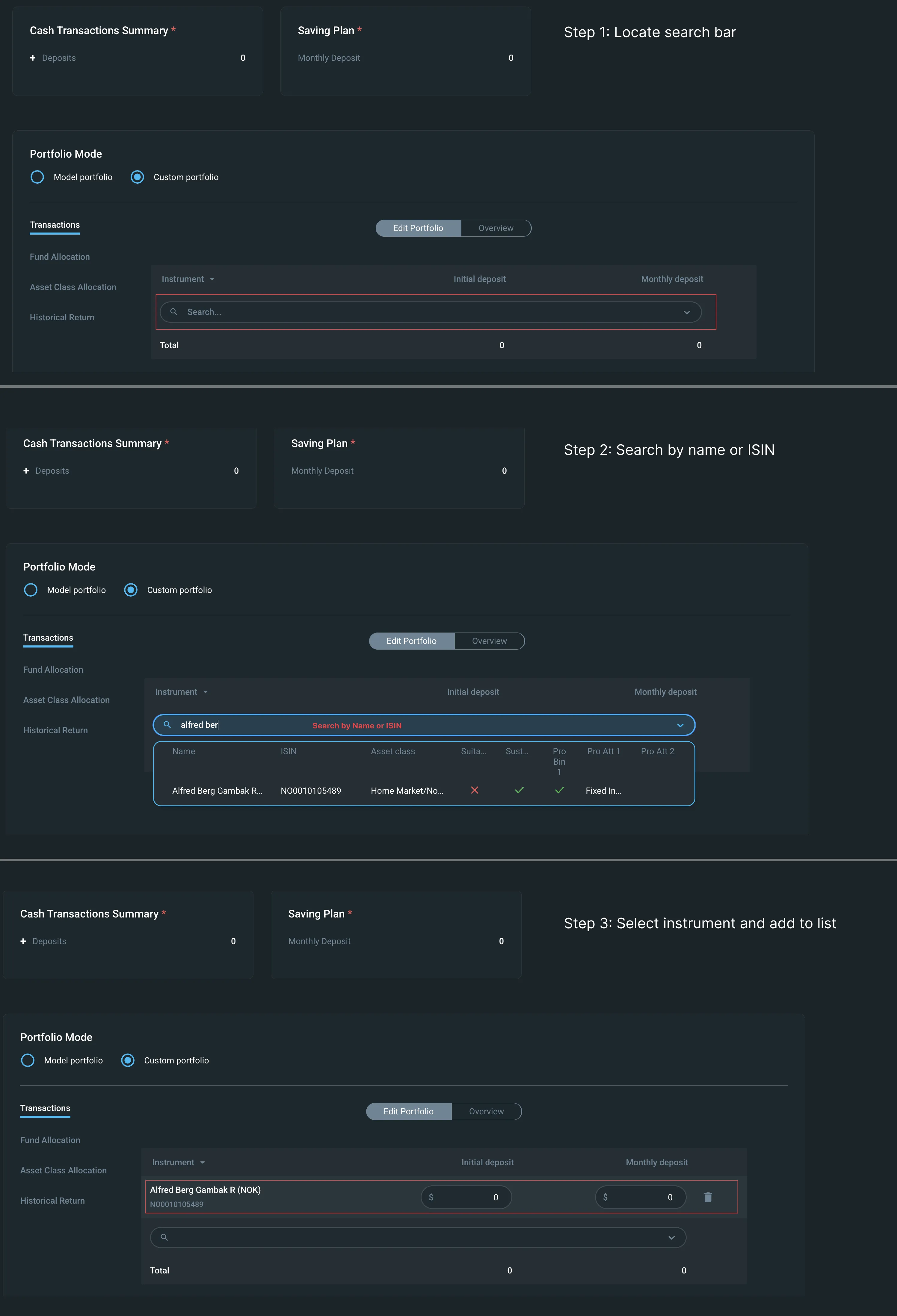
Step 1: Search and add funds
Use the advanced search to find funds that match your client's needs:
- Enter search criteria (fund name or ISIN)
- Review search results with your configured data fields
- Click to include funds in the portfolio
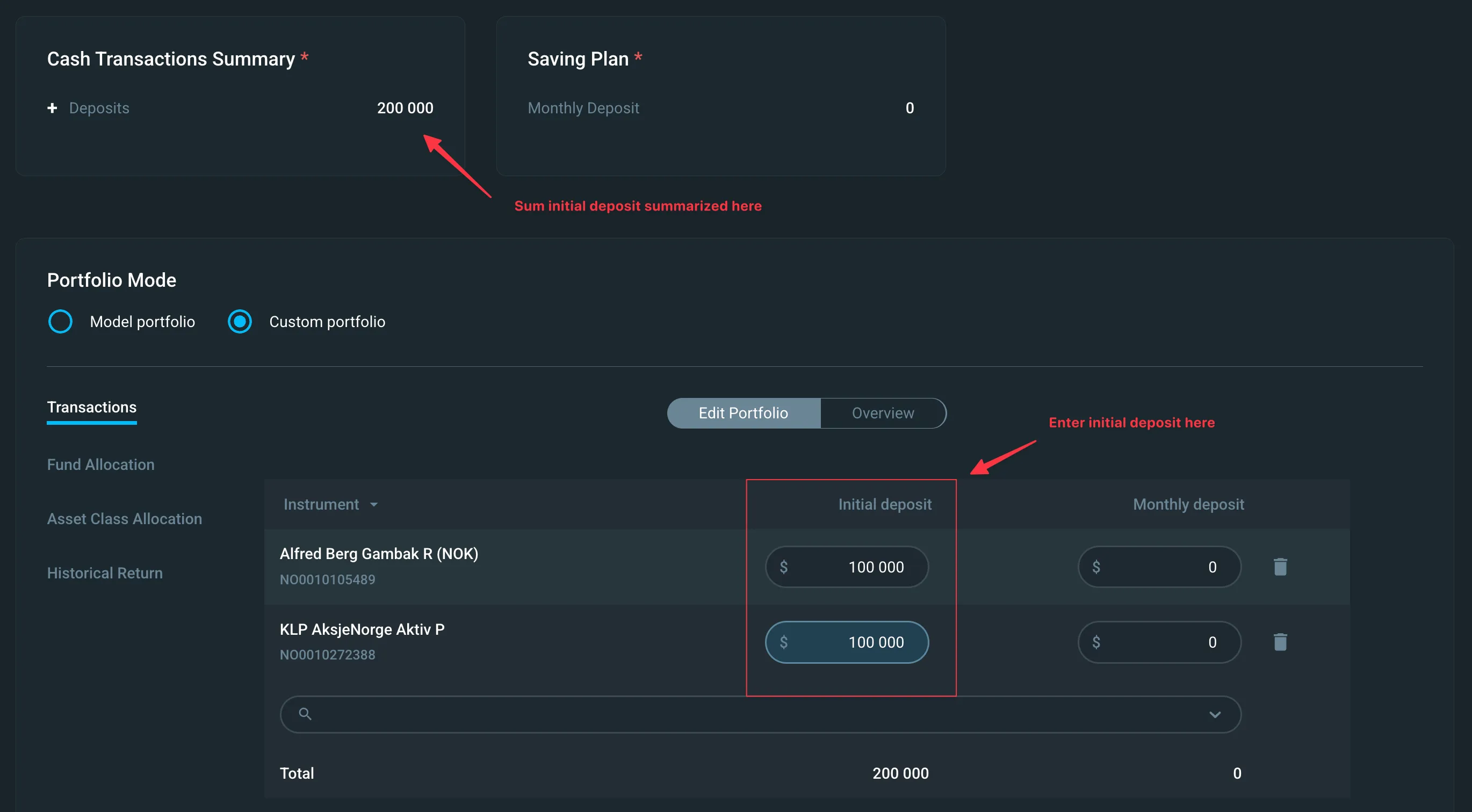
Step 2: Allocate initial deposit
Specify how the initial deposit should be invested:
- Enter the amount for each fund
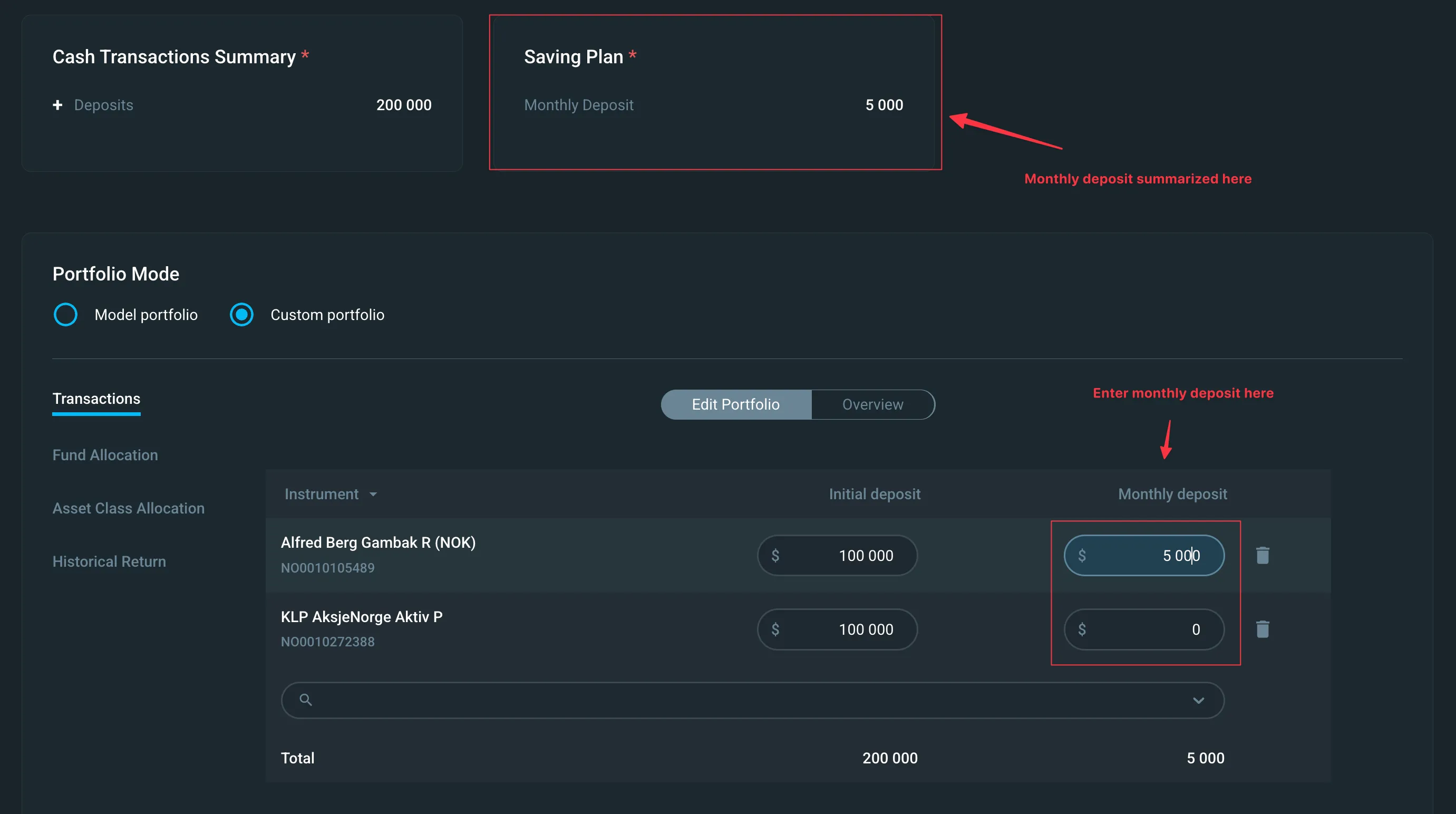
Step 3: Allocate monthly savings (optional)
If the client has a monthly savings plan, set the allocation:
- Enter monthly amounts for each fund
- Useful when building positions gradually or managing cash flow
Step 4: Review and finalize
- Use the available analysis tools to verify the portfolio meets client objectives
- Check asset class allocation and historical return
- Add advisor notes if enabled
With Portfolio Actions
Use this workflow when the client has existing holdings synchronized to the platform. You build on the client's current positions and make targeted adjustments.
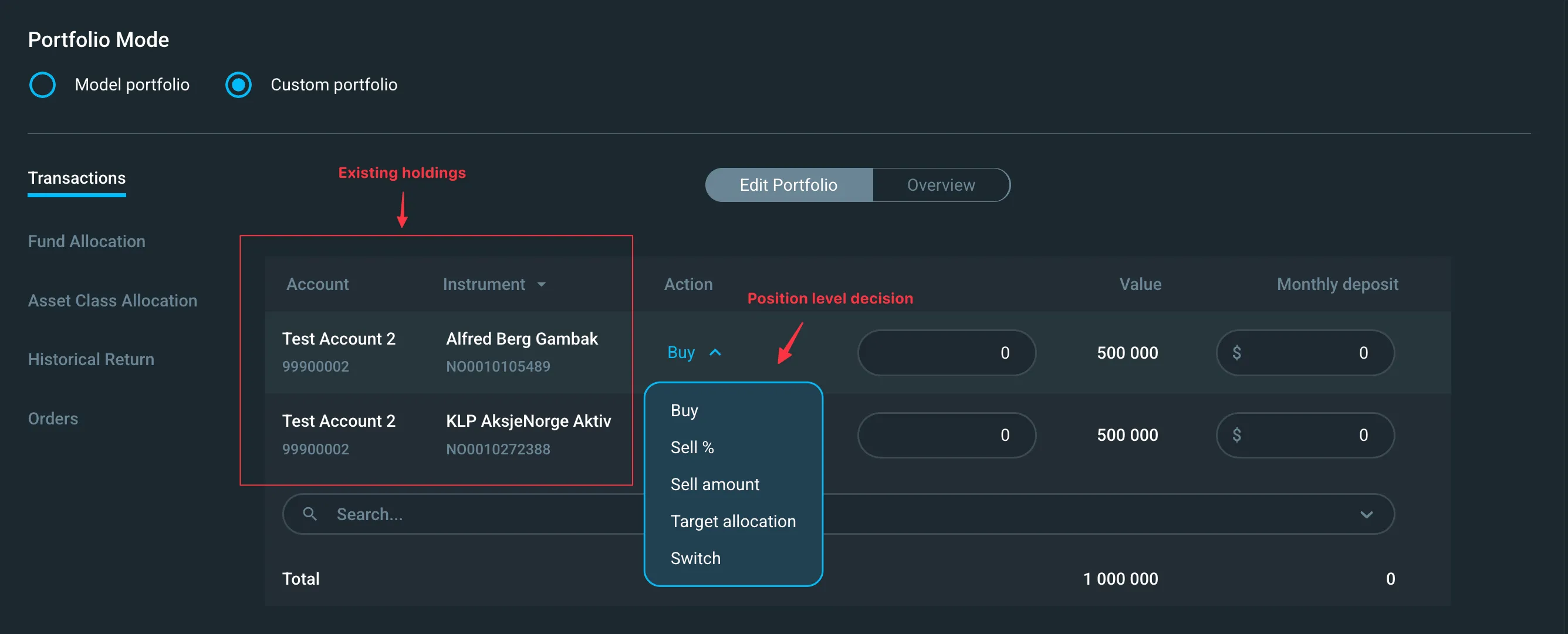
Step 1: Review existing holdings
Review the client's current positions assigned through Portfolio Actions. Consider which holdings to keep, adjust, or replace based on the client's objectives. Decide how to adjust the holding:
- Buy: Add a specific amount
- Sell amount: Sell a specific currency amount
- Sell %: Sell a percentage of the position
- Target value: Specify the desired end value
- Switch order: Replace one holding with another
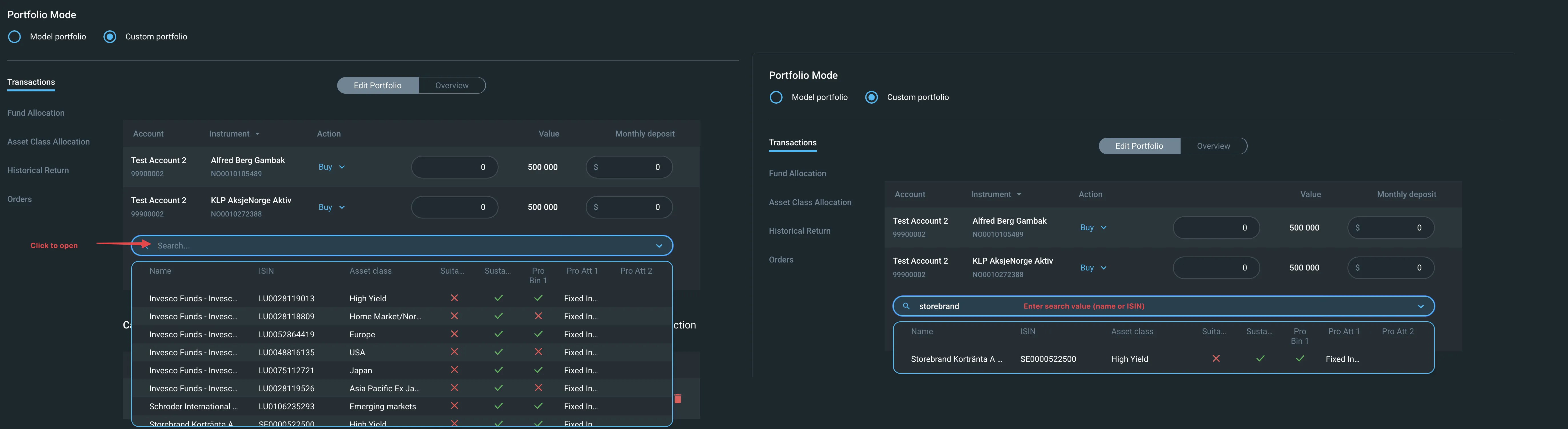
Step 2: Search and add funds
Use the advanced search to add new funds to the portfolio:
- Enter search criteria (fund name or ISIN)
- Review search results with your configured data fields
- Click to include funds in the portfolio
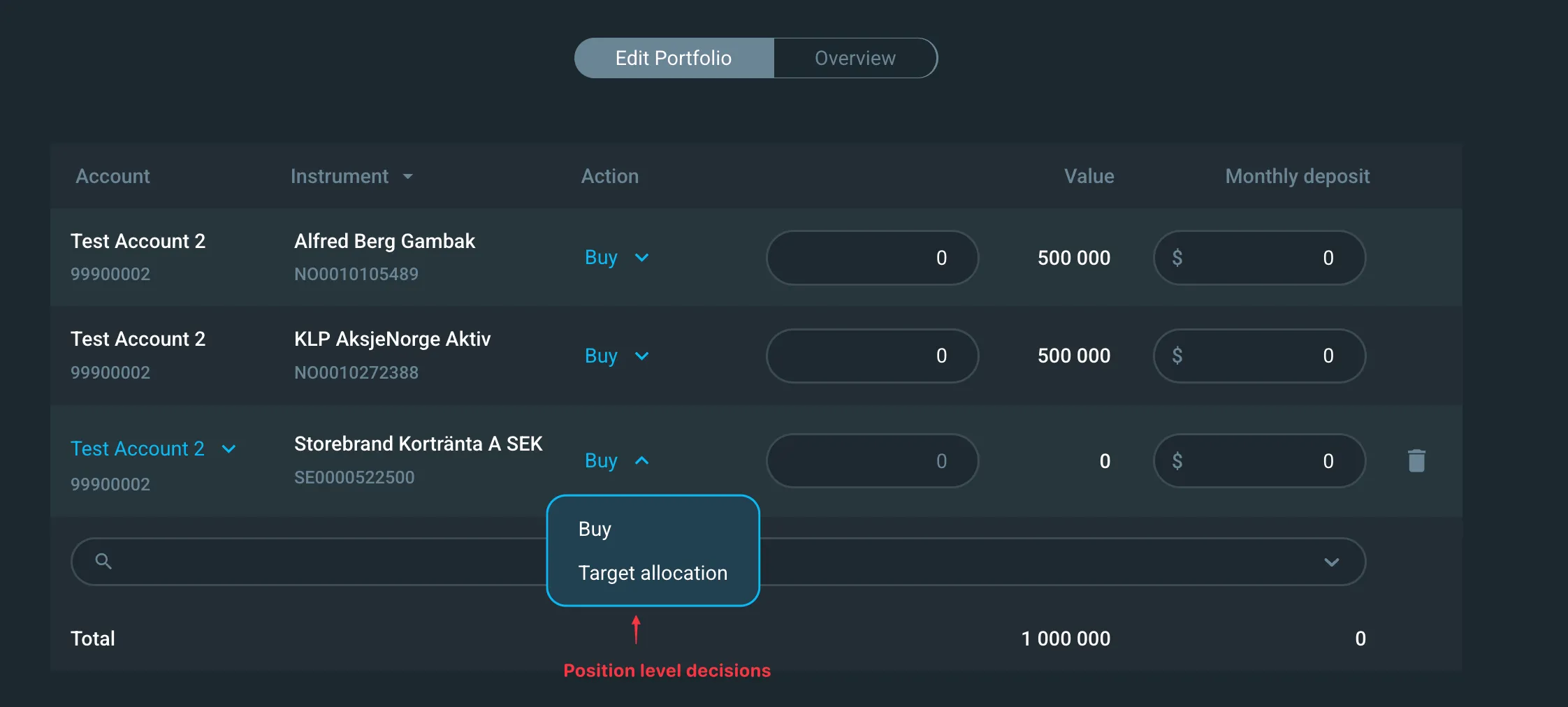
Step 3: Set position-level decisions on newly added positions
For each new position, decide how to adjust the holding:
- Buy: Add a specific amount
- Target value: Specify the desired end value
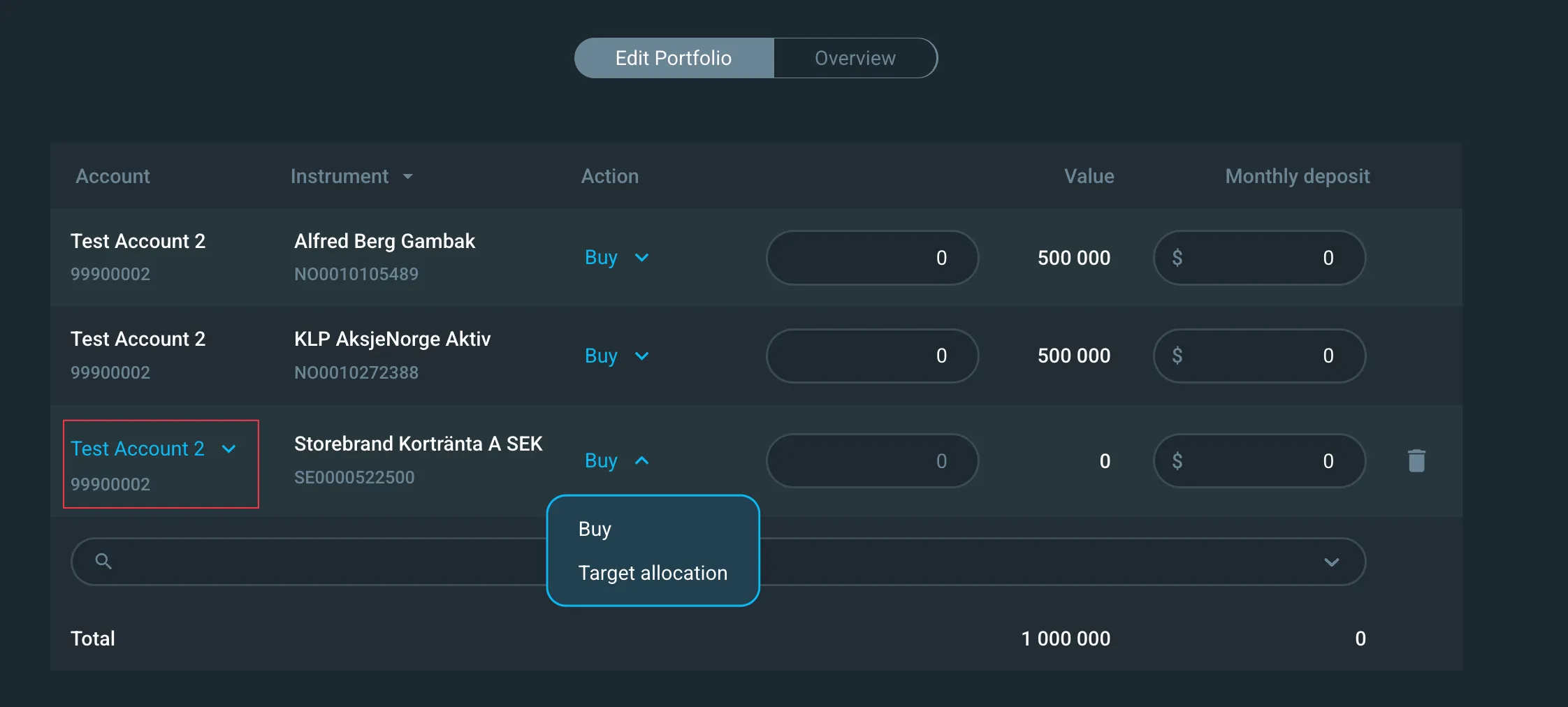
Step 4: Assign accounts for new positions
Select which account each new position should be invested in.
Step 5: Review and finalize
- Verify the aggregated deposits, withdrawals, and target values
- Check asset class allocation and historical return
- Add advisor notes if enabled
Tips and best practices
Start with model portfolios when possible Use model portfolios for standard scenarios and reserve custom portfolios for genuine customization needs.
Use analysis tools Regularly check asset class allocation and risk metrics to ensure the portfolio stays within appropriate boundaries.
Document your reasoning If advisor notes are enabled, document why you deviated from model portfolios. This helps with compliance and future reference.
Common questions
Q: Can we configure the information displayed in the advanced search?
A: Yes. You can customize which fund data appears in search results. See the Configuration options section above or contact support for setup assistance.
Q: How can I ensure advisors aren't creating portfolios that deviate too much from appropriate risk levels?
A: Currently, the best approach is using model portfolios for consistency. Custom Portfolio offers flexibility, which requires advisor judgment. Built-in analysis tools (asset class allocation, risk metrics) help advisors understand when deviations become significant. Blocking rules for off-target portfolios are on our roadmap. Contact us to share your requirements.
Q: Can I save partially completed portfolios?
A: Portfolios are saved in the session for later reference. However, they reset if you switch portfolio mode (from model to custom portfolio) or if you do any adjustments in Portfolio Actions.
Q: What happens if I don't set a monthly savings allocation?
A: Leaving the monthly savings allocation empty does not affect the initial deposit portfolio.
Related resources
- Portfolio Actions — Using Custom Portfolio with existing accounts
Need help? Contact support.